How to Use an Amazon Visa Gift Card: 5 Easy Steps
You’ve got a Visa gift card in your hand. And a cart full of things you want on Amazon. The next step seems simple: just pay with it. If you’ve ever tried and hit a confusing decline or a card not accepted message, you’re not alone. Many shoppers in the US, UK, Canada, and other countries run into the problem every year.
The good news is that it’s easy to solve. Once you know the method, using a Visa gift card on Amazon takes less than two minutes. Learning how to use an Amazon Visa gift card correctly can help you avoid declined payments and checkout errors.
This guide walks you through every step of how to use an Amazon Visa gift card, covers split-payment workarounds, troubleshoots errors, and explains how to use every last cent of your card’s balance. Amazon accepts Visa gift cards like a regular credit or debit card. Add it to your Amazon Wallet under “Your Payments,” then select it at checkout like any card.
What Is a Visa Gift Card? Does Amazon Accept It?
A Visa gift card is a card with a fixed dollar amount. It has the Visa logo, which means it’s accepted anywhere Visa is. Including Amazon.
Amazon’s policy is clear: Visa, Mastercard, and American Express cards are accepted for most purchases. However, there’s one catch that trips up first-time users. Amazon does not natively support splitting a payment between a prepaid gift card and another payment method at checkout.
This limitation causes every failed transaction that people experience. There are easy workarounds. Covered in detail below.If you’re unfamiliar with prepaid cards, this guide to gift cards explains how Visa gift cards work and where they can be used.
Step-by-Step Guide on How to Use an Amazon Visa Gift Card
Step 1. Activate Your Card First
Before anything, make sure the card is activated. Cards bought in-store are usually activated at the register. Purchased cards almost always require manual activation:
- Visit the activation website printed on the card’s sticker or packaging
- Enter the 16-digit card number, expiration date, and sometimes a ZIP code
- Alternatively, call the toll number on the back of the card
Skipping this step is the top reason Visa gift cards get declined on Amazon. Don’t skip it. The first step in understanding how to use an Amazon Visa gift card is making sure the card is activated properly.
Step 2. Check Your Card Balance
Knowing the exact balance prevents checkout headaches. Use the balance-check website or phone number printed on the back of the card. Record the amount. You’ll need it in Step 4.
Step 3. Add the Visa Gift Card to Your Amazon Wallet
This is the most reliable method:
1. Sign in to your Amazon account
2. Go to Account & Lists → Your Account
3. Select Your Payments → Add a payment method
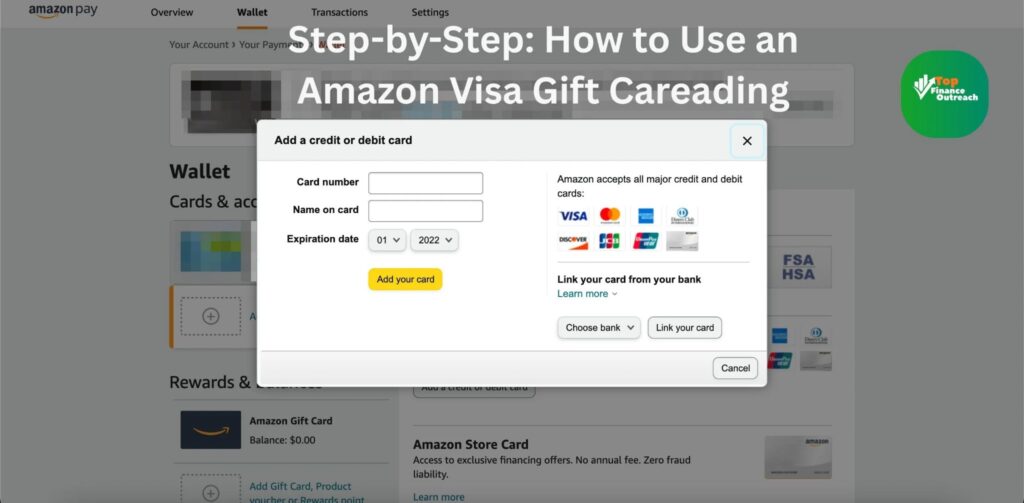
4. Choose Add a credit or debit card
5. Enter the gift card’s 16-digit number, expiration date, and CVV (security code)
6. For the billing name and address, enter your name and address. Not the card issuers
7. Save the card
Your Visa gift card now appears in your Amazon Wallet like a debit card. Select it at checkout. Once the card is added to your Wallet, how to use an Amazon Visa gift card becomes almost identical to using a normal debit card on Amazon.
Step 4. Handle Partial Balances the Smart Way
Here’s where many people get stuck. If your cart total exceeds your gift card balance, Amazon will decline the transaction. It can’t split a card with another card directly.
The reliable workaround:
- Purchase an Amazon Gift Card for the exact balance remaining on your Visa gift card
- Use your Visa gift card as the payment method for that Amazon Gift Card purchase
- The amount loads directly into your Amazon account balance
- At checkout, your Amazon account balance applies automatically. And you can combine it with any payment method for the remainder
Example: Your Visa gift card has $37.42 left. Buy a $37.42 Amazon Gift Card using the Visa card. That $37.42 now sits in your Amazon balance. Combines with your credit card seamlessly. Many shoppers searching for how to use an Amazon Visa gift card struggle with partial balances, but the Amazon Gift Card workaround solves this issue easily.
Step 5. Complete Your Purchase
With your gift card added to the Wallet (or converted to an Amazon balance) proceed to checkout. Select the payment method, review your order. Confirm.
How to Add a Visa Gift Card to Amazon on Mobile
The process is the same on the Amazon app (iOS or Android):
* Tap the three-line menu → Your Account
* Select Manage payment methods
* Tap Add a credit or debit card
* Enter your Visa gift card details
* Save and use at checkout
Mobile shoppers in Canada, the UK, and Australia follow the steps. Just ensure you’re logged into the correct regional Amazon store (.ca,.co, .uk, .com, .au) to avoid currency issues. Digital wallets, virtual cards, and mobile payments are rapidly shaping the future of fintech worldwide.If you are wondering how to use an Amazon Visa gift card on mobile devices, the process is nearly identical on Android and iPhone.
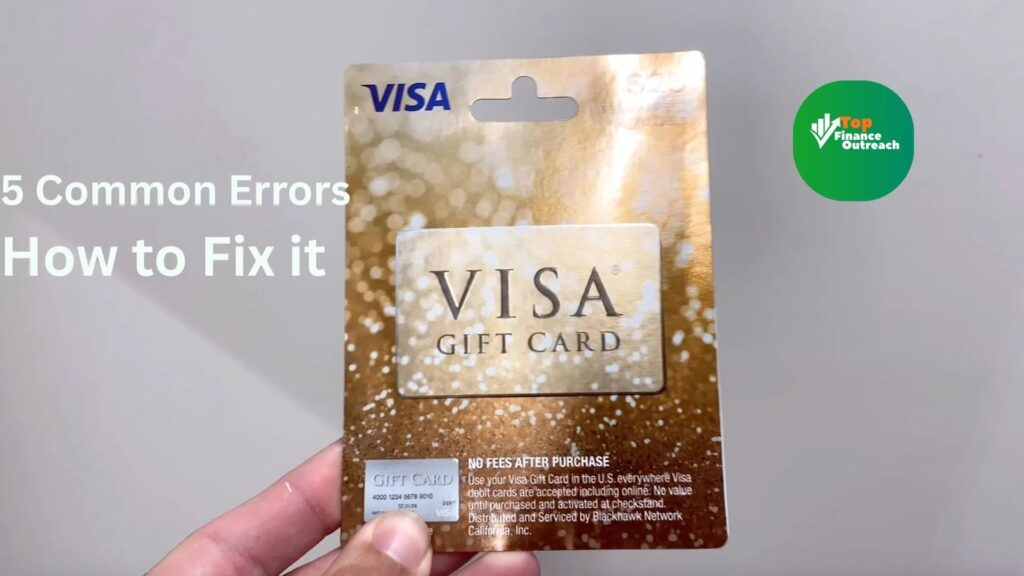
5 Common Errors. How to Fix Them
1. Card Declined at Checkout
likely causes: card not activated, insufficient balance, or incorrect billing address. Double-check. Use your personal address. Not the gift card issuer’s address.
2. Payment method not supported
Some third-party sellers on Amazon do not accept cards. Switch to the Amazon Gift Card conversion method (Step 4) to bypass this restriction.
3. Balance Doesn’t Match
Amazon checks the balance to the cent. Even a $0.01 discrepancy causes a decline. Always verify your balance before adding the card.
4. Card Expired
Most Visa gift cards are valid for 3–5 years. Some carry inactivity fees after a period of non-use. Check the expiration date printed on the front of the card.
5. Currency Mismatch (International Shoppers)
If you’re using a USD Visa gift card on Amazon.co.uk or Amazon.ca, foreign transaction fees or currency conversion may reduce the balance. Always shop on the regional Amazon store.
Pro Tips to Get the Most Out of Your Visa Gift Card on Amazon. Using coupons, prepaid balances, and smart shopping strategies together is also a great way to save money fast on everyday purchases.
* Combine with Amazon Coupons: Browse the Amazon Coupons page before checkout for savings
* Use Subscribe & Save: If buying recurring products, Subscribe & Save discounts stack with gift card payments
* Check for expiry fees: Some prepaid Visa cards charge a maintenance fee after 12 months of inactivity. Spend it before it starts eating into your balance
* Split across purchases: If the card has a leftover balance, use the Amazon Gift Card method to convert it rather than losing it
* Use Amazon’s “Reload Your Balance” feature: This lets you top up your Amazon balance using your Visa gift card in custom amounts
Asked Questions:
Can I use a Visa gift card on Amazon without an account?
No. Amazon requires you to be signed into an account to save and use a payment method. Creating an account is free. Takes under two minutes.
Can you use Visa gift cards on Amazon Prime?
Yes. A Visa gift card can be used to pay for a Prime membership or any Prime-eligible purchase following the steps outlined above.
What if my Visa gift card doesn’t work on Amazon?
First, confirm activation. Verify the exact balance. If the card still fails, use the Amazon Gift Card conversion workaround in Step 4. It bypasses prepaid card restrictions. The easiest way to learn how to use an Amazon Visa gift card is by adding it directly to your Amazon Wallet and using it like a standard payment card.
Can I use Visa gift cards on one Amazon order?
Not directly. Amazon doesn’t support prepaid card transactions on a single order. Convert each card’s balance to Amazon Gift Cards. They’ll merge into one Amazon account balance that you can spend freely.
Does Amazon charge a fee to use a Visa gift card?
No. Amazon does not charge any fee for using a Visa card. Any fees come from the card issuer, not Amazon.Using a Visa gift card on Amazon is straightforward once you understand its one limitation. It can’t split a transaction directly with another payment method. The fix is simple: add it to your Amazon Wallet for single-use purchases. Convert it to an Amazon Gift Card balance for maximum flexibility.
conclusion:
Whether you’re shopping from the US, UK, Canada, or Australia, the steps are the same. Activate the card, verify the balance, add it to your Wallet, and check out. For leftover balances, the Amazon Gift Card conversion is your friend.
Don’t let a Visa gift card sit unused in a drawer. Follow the steps and put that balance to work. Your next Amazon order is waiting. You’ve got a Visa gift card in your hand. And a cart full of things you want on Amazon. The next step seems simple: just pay with it. If you’ve ever tried and hit a confusing decline or a “card not accepted” message, you’re not alone. Many shoppers in the US, UK, Canada, and other countries run into the problem every year.
The good news is that it’s easy to solve. Once you know the method, using a Visa gift card on Amazon takes less than two minutes. Young adults can benefit from learning how to build wealth in their 20s while improving their spending and saving habits online. Understanding how to use an Amazon Visa gift card is straightforward once you understand Amazon’s payment limitations.